# How to get your data from the Strava API using Python and stravalib
In this tutorial, you will learn how to set up your Strava API application using **Stravalib** and Python to access data from Strava's V3 REST API. After setting up authentication, you'll also learn how to refresh your Strava token after it expires.
## Steps to set up Strava API authentication
Authentication involves 4 steps:
1. **Create a Developer App**:
First, you will create a free developer application or "app" in your Strava account. You will use the credentials created by this app to connect to the Strava API.
2. **Set Up Authentication**:
Next, you'll configure your authentication to your Strava data by setting up permissions, known as "scopes." Scopes determine what your app can access—-whether it's just reading data or making changes to the data online on behalf of you or a user.
3. **Log In and Authorize**:
When you log in to Strava and approve the scope permissions created in Step 2, Strava will provide a code. This code is used to request an access token from Strava that you can then use to make data requests.
4. **Use and Refresh the Access Token**:
The access token created above allows you to interact with your Strava data for up to 6 hours. After the - hour time period, you can refresh your token using {py:func}`stravalib.Client.refresh_token()` as often as needed to continue accessing the API.
You only need to complete steps 1-3 once. Once you have a `refresh_token` value, you can continue to refresh your token whenever it expires, following Step 4 above.
:::{note}
This example workflow is a local workflow that doesn't rely on a web application tool like Flask. If you want to use Flask, we have a demo folder that provides a basic setup in the `examples/strava-oath` directory of the stravalib GitHub repository.
:::
```python
# You will use this to log in to your Strava account
import webbrowser
import json
from stravalib.client import Client
# Open the secrets file and store the client ID and client secret as objects, separated by a comma
# Read below to learn how to set up the app that provides you with the client ID
# and the client secret
client_id, client_secret = open("client_secrets.txt").read().strip().split(",")
# Create a client object
client = Client()
# Define your scope (this is read-only - see below for a "write" example which
# allows you to update activities and publish new activities to your Strava account).
# read_all allows read access for both private and public activities
request_scope = ["read_all", "profile:read_all", "activity:read_all"]
# Create a localhost URL for authorization (for local development)
redirect_url = "http://127.0.0.1:5000/authorization"
# Create authorization url; your app client_id required to authorize
url = client.authorization_url(
client_id=client_id,
redirect_uri=redirect_url,
scope=request_scope,
)
# Open the URL in a web browser
webbrowser.open(url)
print(
"""You will see a url that looks like this. """,
"""http://127.0.0.1:5000/authorization?state=&code=12323423423423423423423550&scope=read,activity:read_all,profile:read_all,read_all")""",
"""Copy the values between code= and & in the url that you see in the
browser. """,
)
# Using input allows you to copy the code into your Python console
# (or Jupyter Notebook)
code = input("Please enter the code that you received: ")
print(
f"Great! Your code is {code}\n"
"Next, I will exchange that code for a token.\n"
"I only have to do this once."
)
# Exchange the code returned from Strava for an access token
token_response = client.exchange_code_for_token(
client_id=client_id, client_secret=client_secret, code=code
)
token_response
# Example output of token_response
# {'access_token': 'value-here-123123123', 'refresh_token': # '123123123',
# 'expires_at': 1673665980}
# Get current athlete details
athlete = client.get_athlete()
# Print athlete name :) If this works, your connection is successful!
print(f"Hi, {athlete.firstname} Welcome to stravalib!")
# You are now successfully authenticated!
```
Below you will get a detailed overview of the above steps. You will also learn how to
refresh your access token after the 6-hour window has expired.
## Step 1: create a developer app in your Strava account
To begin, you need to create a free developer application in
your Strava account.
[Click here and follow Strava's steps to create a developer
application.](https://developers.strava.com/docs/getting-started/#account)
The figures below are from the Strava setup link provided above. They show you:
1. The Strava application setup screen and
2. The Strava application, once it's been set up with the client ID and access token values.
:::{figure-md} app-account
:class: myclass
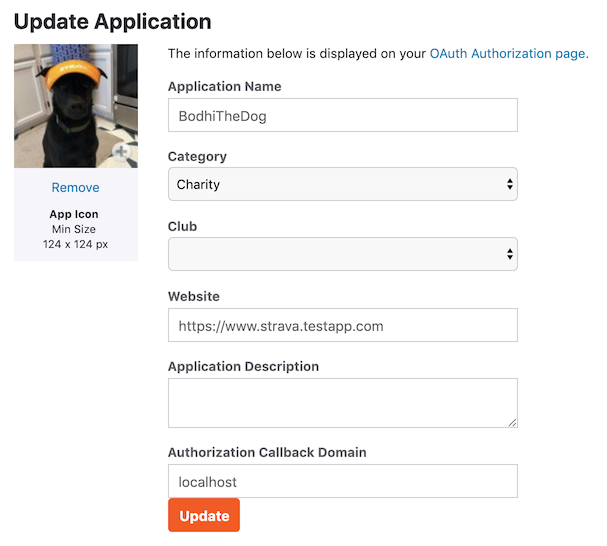 Figure from the Strava documentation showing the application settings. You can
name your application whatever you wish. You can add any website URL if you are grabbing your data locally. For this tutorial, use `localhost` for the Authorization Callback
Domain if you are only using this locally. Otherwise, you likely have a website
URL that you will enter here.
:::
:::{figure-md} app-secrets
:class: myclass
Figure from the Strava documentation showing the application settings. You can
name your application whatever you wish. You can add any website URL if you are grabbing your data locally. For this tutorial, use `localhost` for the Authorization Callback
Domain if you are only using this locally. Otherwise, you likely have a website
URL that you will enter here.
:::
:::{figure-md} app-secrets
:class: myclass
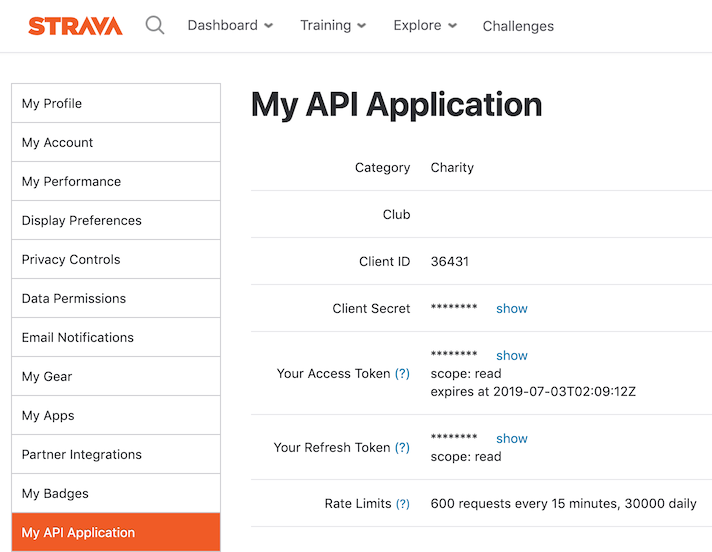 Figure from the Strava documentation showing the application settings. This screenshot shows the final application you should have once you follow the
steps above. Notice that you can see the access token scope and expiration time and date on the app page. These are values that you will work with below. Copy the **Client ID** and **Client secret** to a file
(see below for more).
:::
:::{important}
Remember to store your client ID and client secret values somewhere safe.
Do not EVER commit secrets or token values to `.git` or push it to GitHub (unless you have
encrypted it)!
:::
### Save your secret and access token values in a text file
Notice that there is a client secret (hidden
in the screenshot) and a token in the first screenshot above. Next, you will copy both the secret and the token to use (and reuse) in your code.
Do the following:
* Create a `client_secrets.txt` file.
* Add the client secret and access token values on a single line separated
by a comma in the format that you see below:
`secret_value_here, access_token_value_here`
:::{note}
The format described above is not required for a Strava workflow. This is just an example of how to store relevant information that you will need to reuse if you intent to update the data in your workflow regularly. If you are creating a web application, you should store this information
securely somewhere in your application's database or web infrastructure.
:::
## Step 2: Setup Strava authentication
Once you have created your `client_secrets.txt` file, you are ready to setup
authentication using **Python**.
At the top of your code, import the {py:class}`stravalib.client.Client` class.
In this tutorial, you will also import `webbrowser` to launch a web browser from your code to
login to Strava. `webbrowser` behaves similarly to a web application.
```python
# Use webbrowser to launch a browser from Python
import webbrowser
import json
from stravalib.client import Client
```
Next, read the `client_id` and `access_token` from the `client_secrets.txt` file that you created earlier. Then, create a **stravalib** `Client()` object.
Below, the `client_id` and `access_token` are read from the client_secrets.txt file. The `.strip()` method removes any extra spaces, and `.split(",")` separates the two values. You then create a `Client()` object from stravalib, which will be used to interact with the Strava API and manage your data.
```python
# Read the client_id and access_token from the secrets file
client_id, access_token = open("client_secrets.txt").read().strip().split(",")
# Create a stravalib Client() object
client = Client()
```
The `Client()` object is what you'll use to interact with Strava. It stores your authentication details and provides methods to:
* Retrieve different types of data from Strava, such as activities and club data.
* Modify activity and club data on Strava (if you have a token with write permissions).
You will learn more about read vs. write token scopes below.
## Step 3: Login and authorize Strava to interact with your code
Now that your developer app is created, it's time to authenticate with Strava.
1. You have the client secret and token from your Strava account's developer app, and
2. You have the `Client()` object from **stravalib**.
### Create a URL to Authenticate and Define the Token Scope
Next, you'll define the scope of your authentication (what permissions you need) and set up a redirect URL.
1. **Define the Scope**:
The scope determines what permissions your app will have when interacting with Strava. If you only need to **read** your data, a read-only scope is enough. However, if you want to **write** data (e.g., upload or create activities), you'll need to request write permissions.
2. **Set a Redirect URL**:
After you log in to Strava and approve the scope permissions, Strava will redirect you to a specific URL. This is the `redirect_url` you need to define. If you're just authenticating on your local machine to access your own data, you can use something simple like `localhost` for the `redirect_url`.
```{tip}
If you are building an app, then your redirect URL might be the
URL of your app.
```
### Define the Scope for Strava API access
When working with Strava's API, you must define your application's permissions, or **scope**. The scope determines what your app can access or modify. If you only want to **download** your data, you can use **read-only** permissions.
#### Example scope values for read-only access
The example below shows a Python list that defines read-only access. This scope allows your application to access a user's profile and activity data without modifying anything:
```python
# Read-only scope values
request_scope = ["read_all", "profile:read_all", "activity:read_all"]
```
#### Example scope values for read and write access
You must include a "write" scope if you need to modify and upload data to Strava (e.g., creating or modifying activities). Here’s an example of a scope that includes both read and write permissions:
```python
# Read and write scope values
request_scope = ["read_all", "profile:read_all", "activity:write", "activity:read_all"]
```
The `activity:write` scope allows your app to upload or modify activity data to Strava.
:::{tip}
[Learn more about request scope options from the Strava documentation here.](https://developers.strava.com/docs/authentication/#details-about-requesting-access)
:::
In this tutorial, you will limit your scope to **read-only** as you are only
looking at data in this tutorial rather than modifying it.
You also set the `redirect_url` to **localhost** (to be opened on your computer
locally) URL:
```python
# Create a localhost URL
redirect_url = "http://127.0.0.1:5000/authorization"
# Define a read-only scope
request_scope = ["read_all", "profile:read_all", "activity:read_all"]
# Create an authorization URL using stravalib
url = client.authorization_url(
client_id=client_id,
redirect_uri=redirect_url,
scope=request_scope,
)
```
Your URL will look something like this:
```python
print(url)
# 'https://www.strava.com/oauth/authorize?client_id=123456&redirect_uri=http%3A%2F%2F127.0.0.1%3A5000%2Fauthorization&approval_prompt=auto&response_type=code&scope=read_all%2Cprofile%3Aread_all%2Cactivity%3Aread_all'
```
### Authenticate with Strava using Python
Now that you've created your Strava authentication URL, you're ready to use it to get permission to access data from the Strava API.
In this section, you'll use Python's `webbrowser.open` method to:
1. Open the URL directly from your Python code in a web browser.
2. Authenticate with Strava (login and allow your app to access the developer app you created earlier).
3. Strava will redirect you to a "page not found" screen with a long URL after authentication. This might look like an error, but it's correct! The URL contains the code that you need to complete authentication.
The URL will look something like this:
```text
http://127.0.0.1:5000/authorization?state=&code=xxxxxxxxxxx&scope=read
```
4. Copy the value between **code** and the **&** symbol. The `xxxxxxxxxxx` in the example represents the code you'll need to authenticate with the API.
Now you're ready to use this code to authenticate!
```python
# Open the url that you created above in a web browser
webbrowser.open(url)
print("""You will see a URL that looks like this:
http://127.0.0.1:5000/authorization?state=&code=12323423423423423423423550&scope=read,activity:read_all,profile:read_all,read_all
Copy the values between code= and & in the URL that you see in the browser.""")
# Using input allows you to copy the code into your Python console (or Jupyter Notebook)
code = input("Please enter the code that you received: ")
print(
f"Great! Your code is {code}\n"
"Next, I will exchange that code for a token.\n"
"I only have to do this once."
)
```
You only need to get a code from Strava once.
Next, you exchange the code for an access token. After this, you can refresh the token as often as needed to continue accessing your data.
In the example below, you'll exchange the code for a token using {py:func}`stravalib.client.Client.exchange_code_for_token()`. The token response contains both an access token (valid for 6 hours) and a refresh token, which you will use to get a new access token once the current one expires.
You can save the token response as a `.json` file so that you can reuse the refresh token later without going through the authentication process again.
```python
token_response = client.exchange_code_for_token(
client_id=client_id, client_secret=client_secret, code=code
)
# Save the token response as a JSON file
with open(json_path, "w") as f:
json.dump(token_response, f)
print("Token saved - hooray!")
# Access and refresh tokens
access_token = token_response["access_token"]
refresh_token = token_response["refresh_token"] # Use this after 6 hours
```
## Step 4: Use and refresh your Strava API token
Strava provides you with an access token that is good for 6 hours. You can refresh the token as needed if you wish to grab
more data after that 6-hour window has ended.
You can refresh the token using the
{py:func}`stravalib.client.Client.refresh_access_token()` method.
Earlier, you saved the `refresh_token` and `expires_at` values to a JSON file. You can use the refresh token stored in the JSON file to refresh your token for another 6 hours of use as many times as needed.
This might be most useful if you try to process your data again--for example, the next day and you don't have the refresh token value stored and accessible to Python.
```python
# Open the token JSON file that you saved earlier
with open(json_path, "r") as f:
token_response_refresh = json.load(f)
print(token_response_refresh)
# Output:
# {'access_token': 'ab0667a99d17b7c278d9f730f733ad09016306cf',
# 'refresh_token': '9f8d5689c93e83c7b0c69a8585010d4762e8b2ac',
# 'expires_at': 1726560054}
```
```python
refresh_response = client.refresh_access_token(
client_id=client_id, # Stored in the secrets.txt file above
client_secret=client_secret,
refresh_token=refresh_token, # Stored in your JSON file
)
# Check that the refresh worked
client.get_athlete()
# View the newly refreshed token
print(client.access_token)
```
## Wrap up
You now know how to:
1. Setup an app within your Strava account
2. Connect that app to your Python code using stravalib
3. Request and refresh a token that allows you to request and update data in your Strava account
Figure from the Strava documentation showing the application settings. This screenshot shows the final application you should have once you follow the
steps above. Notice that you can see the access token scope and expiration time and date on the app page. These are values that you will work with below. Copy the **Client ID** and **Client secret** to a file
(see below for more).
:::
:::{important}
Remember to store your client ID and client secret values somewhere safe.
Do not EVER commit secrets or token values to `.git` or push it to GitHub (unless you have
encrypted it)!
:::
### Save your secret and access token values in a text file
Notice that there is a client secret (hidden
in the screenshot) and a token in the first screenshot above. Next, you will copy both the secret and the token to use (and reuse) in your code.
Do the following:
* Create a `client_secrets.txt` file.
* Add the client secret and access token values on a single line separated
by a comma in the format that you see below:
`secret_value_here, access_token_value_here`
:::{note}
The format described above is not required for a Strava workflow. This is just an example of how to store relevant information that you will need to reuse if you intent to update the data in your workflow regularly. If you are creating a web application, you should store this information
securely somewhere in your application's database or web infrastructure.
:::
## Step 2: Setup Strava authentication
Once you have created your `client_secrets.txt` file, you are ready to setup
authentication using **Python**.
At the top of your code, import the {py:class}`stravalib.client.Client` class.
In this tutorial, you will also import `webbrowser` to launch a web browser from your code to
login to Strava. `webbrowser` behaves similarly to a web application.
```python
# Use webbrowser to launch a browser from Python
import webbrowser
import json
from stravalib.client import Client
```
Next, read the `client_id` and `access_token` from the `client_secrets.txt` file that you created earlier. Then, create a **stravalib** `Client()` object.
Below, the `client_id` and `access_token` are read from the client_secrets.txt file. The `.strip()` method removes any extra spaces, and `.split(",")` separates the two values. You then create a `Client()` object from stravalib, which will be used to interact with the Strava API and manage your data.
```python
# Read the client_id and access_token from the secrets file
client_id, access_token = open("client_secrets.txt").read().strip().split(",")
# Create a stravalib Client() object
client = Client()
```
The `Client()` object is what you'll use to interact with Strava. It stores your authentication details and provides methods to:
* Retrieve different types of data from Strava, such as activities and club data.
* Modify activity and club data on Strava (if you have a token with write permissions).
You will learn more about read vs. write token scopes below.
## Step 3: Login and authorize Strava to interact with your code
Now that your developer app is created, it's time to authenticate with Strava.
1. You have the client secret and token from your Strava account's developer app, and
2. You have the `Client()` object from **stravalib**.
### Create a URL to Authenticate and Define the Token Scope
Next, you'll define the scope of your authentication (what permissions you need) and set up a redirect URL.
1. **Define the Scope**:
The scope determines what permissions your app will have when interacting with Strava. If you only need to **read** your data, a read-only scope is enough. However, if you want to **write** data (e.g., upload or create activities), you'll need to request write permissions.
2. **Set a Redirect URL**:
After you log in to Strava and approve the scope permissions, Strava will redirect you to a specific URL. This is the `redirect_url` you need to define. If you're just authenticating on your local machine to access your own data, you can use something simple like `localhost` for the `redirect_url`.
```{tip}
If you are building an app, then your redirect URL might be the
URL of your app.
```
### Define the Scope for Strava API access
When working with Strava's API, you must define your application's permissions, or **scope**. The scope determines what your app can access or modify. If you only want to **download** your data, you can use **read-only** permissions.
#### Example scope values for read-only access
The example below shows a Python list that defines read-only access. This scope allows your application to access a user's profile and activity data without modifying anything:
```python
# Read-only scope values
request_scope = ["read_all", "profile:read_all", "activity:read_all"]
```
#### Example scope values for read and write access
You must include a "write" scope if you need to modify and upload data to Strava (e.g., creating or modifying activities). Here’s an example of a scope that includes both read and write permissions:
```python
# Read and write scope values
request_scope = ["read_all", "profile:read_all", "activity:write", "activity:read_all"]
```
The `activity:write` scope allows your app to upload or modify activity data to Strava.
:::{tip}
[Learn more about request scope options from the Strava documentation here.](https://developers.strava.com/docs/authentication/#details-about-requesting-access)
:::
In this tutorial, you will limit your scope to **read-only** as you are only
looking at data in this tutorial rather than modifying it.
You also set the `redirect_url` to **localhost** (to be opened on your computer
locally) URL:
```python
# Create a localhost URL
redirect_url = "http://127.0.0.1:5000/authorization"
# Define a read-only scope
request_scope = ["read_all", "profile:read_all", "activity:read_all"]
# Create an authorization URL using stravalib
url = client.authorization_url(
client_id=client_id,
redirect_uri=redirect_url,
scope=request_scope,
)
```
Your URL will look something like this:
```python
print(url)
# 'https://www.strava.com/oauth/authorize?client_id=123456&redirect_uri=http%3A%2F%2F127.0.0.1%3A5000%2Fauthorization&approval_prompt=auto&response_type=code&scope=read_all%2Cprofile%3Aread_all%2Cactivity%3Aread_all'
```
### Authenticate with Strava using Python
Now that you've created your Strava authentication URL, you're ready to use it to get permission to access data from the Strava API.
In this section, you'll use Python's `webbrowser.open` method to:
1. Open the URL directly from your Python code in a web browser.
2. Authenticate with Strava (login and allow your app to access the developer app you created earlier).
3. Strava will redirect you to a "page not found" screen with a long URL after authentication. This might look like an error, but it's correct! The URL contains the code that you need to complete authentication.
The URL will look something like this:
```text
http://127.0.0.1:5000/authorization?state=&code=xxxxxxxxxxx&scope=read
```
4. Copy the value between **code** and the **&** symbol. The `xxxxxxxxxxx` in the example represents the code you'll need to authenticate with the API.
Now you're ready to use this code to authenticate!
```python
# Open the url that you created above in a web browser
webbrowser.open(url)
print("""You will see a URL that looks like this:
http://127.0.0.1:5000/authorization?state=&code=12323423423423423423423550&scope=read,activity:read_all,profile:read_all,read_all
Copy the values between code= and & in the URL that you see in the browser.""")
# Using input allows you to copy the code into your Python console (or Jupyter Notebook)
code = input("Please enter the code that you received: ")
print(
f"Great! Your code is {code}\n"
"Next, I will exchange that code for a token.\n"
"I only have to do this once."
)
```
You only need to get a code from Strava once.
Next, you exchange the code for an access token. After this, you can refresh the token as often as needed to continue accessing your data.
In the example below, you'll exchange the code for a token using {py:func}`stravalib.client.Client.exchange_code_for_token()`. The token response contains both an access token (valid for 6 hours) and a refresh token, which you will use to get a new access token once the current one expires.
You can save the token response as a `.json` file so that you can reuse the refresh token later without going through the authentication process again.
```python
token_response = client.exchange_code_for_token(
client_id=client_id, client_secret=client_secret, code=code
)
# Save the token response as a JSON file
with open(json_path, "w") as f:
json.dump(token_response, f)
print("Token saved - hooray!")
# Access and refresh tokens
access_token = token_response["access_token"]
refresh_token = token_response["refresh_token"] # Use this after 6 hours
```
## Step 4: Use and refresh your Strava API token
Strava provides you with an access token that is good for 6 hours. You can refresh the token as needed if you wish to grab
more data after that 6-hour window has ended.
You can refresh the token using the
{py:func}`stravalib.client.Client.refresh_access_token()` method.
Earlier, you saved the `refresh_token` and `expires_at` values to a JSON file. You can use the refresh token stored in the JSON file to refresh your token for another 6 hours of use as many times as needed.
This might be most useful if you try to process your data again--for example, the next day and you don't have the refresh token value stored and accessible to Python.
```python
# Open the token JSON file that you saved earlier
with open(json_path, "r") as f:
token_response_refresh = json.load(f)
print(token_response_refresh)
# Output:
# {'access_token': 'ab0667a99d17b7c278d9f730f733ad09016306cf',
# 'refresh_token': '9f8d5689c93e83c7b0c69a8585010d4762e8b2ac',
# 'expires_at': 1726560054}
```
```python
refresh_response = client.refresh_access_token(
client_id=client_id, # Stored in the secrets.txt file above
client_secret=client_secret,
refresh_token=refresh_token, # Stored in your JSON file
)
# Check that the refresh worked
client.get_athlete()
# View the newly refreshed token
print(client.access_token)
```
## Wrap up
You now know how to:
1. Setup an app within your Strava account
2. Connect that app to your Python code using stravalib
3. Request and refresh a token that allows you to request and update data in your Strava account